Why Convert BIN to ISO on macOS?
BIN and CUE files are common in older game backups, disc images and archival software. But macOS apps and emulators typically work much better with the universal ISO format. Unlike Windows, macOS cannot mount BIN files directly — meaning conversion is often required.
- Finder mounts ISO files instantly
- Most mac emulators prefer ISO images
- Your BIN/CUE becomes one clean, portable file
- ISO avoids errors caused by mismatched BIN & CUE pairs
Method 1 – Convert Using AnyToISO Lite
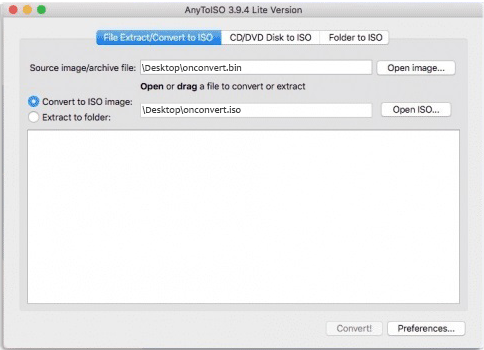
AnyToISO Lite is one of the most user-friendly macOS tools for converting BIN/CUE into ISO. Although the Lite version has some limitations, converting BIN to ISO is fully supported for free.
Steps:
- Download AnyToISO Lite for macOS.
- Open the app and select the Convert to ISO tab.
- Choose your .cue file (the app will detect the BIN automatically).
- Choose an output folder.
- Click Convert.
AnyToISO is often the easiest macOS option because it handles multi-track CUE structures accurately.
Method 2 – Convert BIN to ISO via Terminal Using bchunk
For users comfortable with the command line, bchunk is a powerful option available through Homebrew. It converts BIN & CUE pairs into ISO using a simple one-line command.
Install bchunk:
brew install bchunkConvert BIN + CUE to ISO:
bchunk input.bin input.cue output.isoThe resulting ISO appears in the same folder unless you specify a different output path. This method is highly reliable and works on Intel and Apple Silicon (M1/M2/M3) Macs.

Method 3 – Convert Using cdrdao & Related Homebrew Tools
Tools like cdrdao and cdrtools can reconstruct disc images, read CUE structures and generate ISO files. These are ideal for advanced users working with audio/data hybrid discs.
Install:
brew install cdrdaoConvert CUE/BIN to ISO:
cdrdao read-cd --device IO --cuefile output.cue output.isoThis method is recommended only when dealing with complex multi-track discs or when other tools fail.
How to Mount ISO on macOS
macOS mounts ISO images instantly in Finder:
- Double-click the .iso file.
- It appears on the Desktop and in the Finder sidebar.
The mounted ISO behaves like a real CD/DVD on macOS.
Troubleshooting macOS BIN → ISO Issues
1. CUE file references the wrong BIN name
Edit the CUE file using TextEdit and ensure this line matches:
FILE "myfile.bin" BINARY2. bchunk returns “invalid format”
- The CUE file may be incomplete.
- The BIN file may not be a standard disc image.
- Try AnyToISO Lite instead for better compatibility.
3. Multi-track audio discs convert incorrectly
Use cdrdao instead of bchunk — it reads track indexes more accurately.
4. Converted ISO will not mount
- Check whether the BIN is corrupted.
- Confirm the ISO size is similar to the source BIN.
- Try mounting via Terminal using:
hdiutil mount file.iso
FAQ
What is the easiest way to convert BIN to ISO on macOS?
Most users find AnyToISO Lite the simplest and most accurate option on macOS.
Can I convert BIN without CUE on macOS?
You can, but results are not always accurate. macOS tools rely heavily on the CUE layout file.
Does bchunk work on Apple Silicon (M1/M2/M3)?
Yes. Through Homebrew, bchunk works on both Intel and Apple Silicon Macs.
Is conversion to ISO lossless on macOS?
Yes. The disc content remains identical; only the container format changes.