On Windows 10 and Windows 11, you’ll often see .bin and .cue files when dealing with disc images, game backups or older software. While some programs can work with BIN directly, Windows itself handles .iso files much better.
Converting BIN (and CUE) to ISO makes it easier to mount, open and manage your images in Windows. Below are the most practical Windows-only methods using desktop tools.
Why Convert BIN to ISO on Windows?
- Native support: Windows 10/11 can mount ISO files directly in File Explorer.
- Better compatibility: Many emulators and installers on Windows prefer ISO.
- Single file: ISO combines everything into one file instead of BIN + CUE.
- Less fragile: You don’t risk losing the CUE or mismatching filenames.
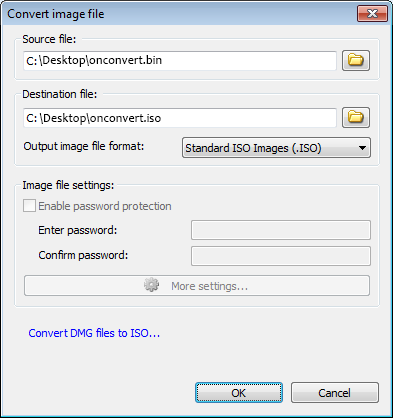
Method 1 – Convert with PowerISO (Windows app)
PowerISO is a popular Windows application for working with disc images. It provides a straightforward BIN → ISO conversion function, making it a good choice for regular use.
Steps in PowerISO:
- Download and install PowerISO from the official website.
- Open PowerISO.
- Go to Tools → Convert.
- Select your .bin or .cue file as the source.
- Choose ISO as the output format.
- Select an output folder and click Convert.
game.bin and game.cue).
Method 2 – Convert with ImgBurn
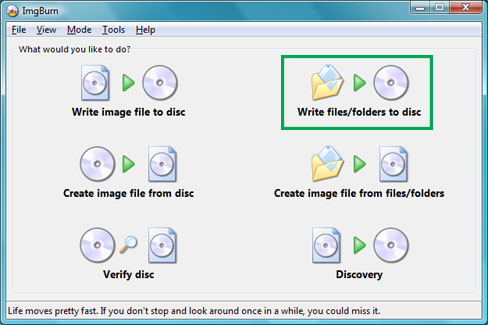
ImgBurn is a well-known free tool for working with disc images on Windows. It can create ISO files based on a loaded CUE file, which describes the layout of the BIN.
How to use ImgBurn for BIN & CUE:
- Download and install ImgBurn.
- Open ImgBurn.
- Choose the mode that allows you to create an image from files/discs (depending on version and layout).
- Load your .cue file — ImgBurn will automatically detect the associated BIN.
- Set the output path for the ISO.
- Start the process and wait for ImgBurn to generate the ISO.
ImgBurn is especially useful for more complex disc images where track information stored in the CUE file needs to be preserved.
Method 3 – Convert with WinBin2Iso (Portable tool)
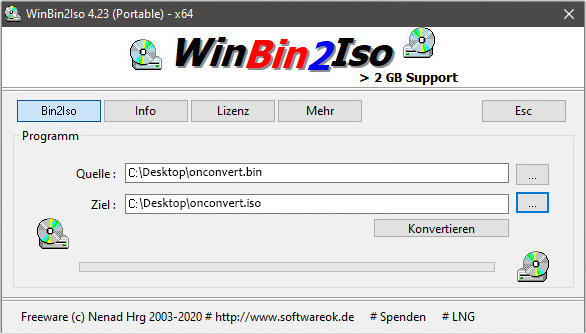
WinBin2Iso is a tiny Windows utility designed specifically for converting BIN files to ISO. It’s portable (no installation required) and very lightweight.
Using WinBin2Iso:
- Download the portable WinBin2Iso executable.
- Run WinBin2Iso.exe.
- Select the source .bin file.
- Select the destination .iso file path.
- Click Convert and wait for the progress bar to complete.
WinBin2Iso is ideal if you don't want to install a full disc authoring suite and only need a fast converter on Windows.
How to Mount ISO on Windows 10/11
Once you have your ISO, Windows 10 and 11 make it very easy to mount and access the contents:
- Locate the ISO file in File Explorer.
- Right-click the ISO.
- Select Mount.
Windows will create a virtual drive that appears under This PC, and you can browse it like a normal CD/DVD.
Troubleshooting Windows BIN → ISO Issues
1. PowerISO or ImgBurn cannot open the BIN file
Try the following:
- Check whether a matching CUE file exists and is in the same folder.
- Open the CUE file in a text editor and make sure the
FILEline references the correct BIN name. - Verify the BIN is not corrupted (for example, re-download or compare checksums if available).
2. The resulting ISO will not mount in Windows
If Windows refuses to mount the ISO or shows errors:
- Confirm the ISO size is similar to the original BIN size.
- Try mounting it with a third-party virtual drive to see if the issue is Windows-specific.
- Re-run the conversion using a different tool (for example, try WinBin2Iso if PowerISO fails).
3. You have multiple BIN files for one disc
Some disc images are split into multiple BINs. In that case, you usually need a CUE file that references all BIN segments in the correct order. Without it, conversion tools may only process part of the disc.
FAQ
What is the easiest way to convert BIN to ISO on Windows?
For most users, tools like PowerISO or WinBin2Iso provide the simplest way to convert BIN files to ISO on Windows 10/11.
Do I need a CUE file on Windows?
A CUE file is recommended, especially for discs with multiple tracks or mixed audio/data content. Some tools can convert a single-track BIN without a CUE, but results may be less accurate for complex images.
Can Windows mount BIN files directly?
No. Windows can mount ISO files natively, but not BIN files. That is why converting BIN to ISO is so useful on Windows 10 and 11.
Is the conversion from BIN to ISO lossless?
Yes, converting BIN to ISO is typically a lossless process. You are rewrapping the same disc data into a different container format.