
- Why Convert BIN to ISO on Linux?
- Install BIN → ISO Tools on Linux
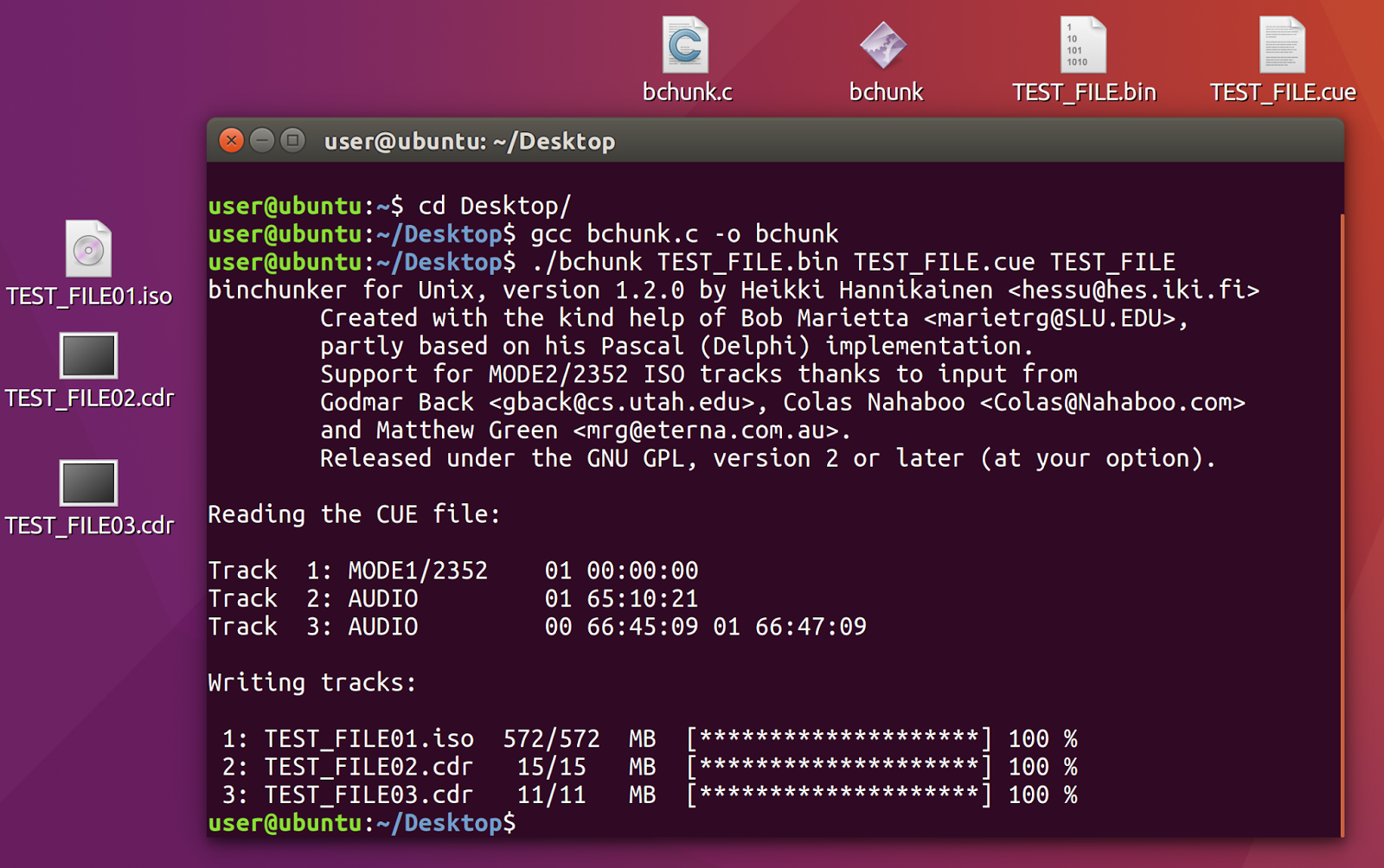
- Method 1 – Convert BIN & CUE with bchunk
- Method 2 – Convert Using ccd2iso
- Method 3 – Convert Using cdrdao (for multi-track discs)
- Method 4 – Convert Using AcetoneISO (GUI)
- How to Mount ISO on Linux
- Troubleshooting BIN → ISO Issues on Linux
- FAQ
Why Convert BIN to ISO on Linux?
BIN and CUE files appear frequently in archived disc images, retro games and extracted media. Linux supports ISO extremely well — but cannot mount BIN images directly without additional tools.
- ISO mounts natively on nearly all Linux distributions.
- Most emulators (PCSX, DuckStation, etc.) prefer ISO.
- ISO is a single, clean file instead of multiple components.
- Easier to use with
mount,fuseiso, or virtual drives.
Install BIN → ISO Tools on Linux
Depending on the distribution, install tools like bchunk, ccd2iso, and cdrdao.
Ubuntu / Debian:
sudo apt install bchunk ccd2iso cdrdaoFedora:
sudo dnf install bchunk ccd2iso cdrdaoArch Linux:
sudo pacman -S bchunk ccd2iso cdrdaoOnce installed, you can convert almost any BIN/CUE disc image directly from the Terminal.
Method 1 – Convert BIN & CUE to ISO Using bchunk
bchunk is the go-to Linux tool for converting paired BIN/CUE files into ISO format. It works for most data discs and is extremely simple to use.
Convert BIN & CUE to ISO:
bchunk input.bin input.cue output.isoThe resulting ISO will appear in the same directory unless you specify a different path. This is the fastest method for standard BIN & CUE conversions.
Method 2 – Convert Using ccd2iso
ccd2iso is often used for CloneCD images, but it can also convert certain BIN structures into ISO. It's a helpful fallback option when bchunk struggles with unusual layouts.
ccd2iso input.bin output.isoThis method is useful for images without a valid CUE file.
Method 3 – Convert Using cdrdao (for multi-track discs)
Some disc images contain multiple audio and data tracks. In these cases, cdrdao handles the conversion more accurately than bchunk.
Rebuild ISO with cdrdao:
cdrdao read-cd --device IO --cuefile output.cue output.isoThis method is recommended for complex archival discs, multi-track audio discs, and certain PS1 backups.
Method 4 – Convert Using AcetoneISO (GUI Tool)
If you prefer a graphical utility, AcetoneISO provides a user-friendly interface for BIN → ISO conversion. It is available on several Linux distributions and can also mount ISO images.
In AcetoneISO:
- Open the application
- Select Convert BIN to ISO
- Choose your BIN file (AcetoneISO will detect the CUE)
- Click Convert
Great for users who prefer GUI tools over Terminal commands.
How to Mount ISO on Linux
Linux can mount ISO images directly using the Terminal:
sudo mount -o loop file.iso /mntTo unmount:
sudo umount /mntFor desktop environments, double-clicking the ISO often mounts it automatically using the native file manager.
Troubleshooting BIN → ISO Issues on Linux
1. “bchunk: invalid CUE file”
- The CUE file may reference the wrong BIN filename.
- Edit the first line of the CUE manually:
FILE "correct-name.bin" BINARY2. Conversion works but ISO is too small
- The BIN file may be corrupted.
- The CUE may have missing track entries.
- Try cdrdao or AcetoneISO instead.
3. Multi-track discs don't convert correctly
bchunk struggles with some audio/data hybrids — use cdrdao instead.
4. ISO does not mount
- Verify file size
- Try mounting with
fuseisoif loop mount fails - Reconvert using a different tool
FAQ
What is the best tool for converting BIN to ISO on Linux?
bchunk is the fastest and most reliable tool for standard BIN/CUE conversions on Linux.
Can I convert a BIN file without CUE on Linux?
Yes, using ccd2iso — but accuracy may vary. For multi-track discs, a correct CUE file is strongly recommended.
Does this work on all Linux distributions?
Yes. These tools work on Ubuntu, Debian, Fedora, Arch, Mint, Pop!_OS and many others.
Is BIN → ISO conversion on Linux lossless?
Yes. No data is changed — the disc image is simply repackaged into ISO format.