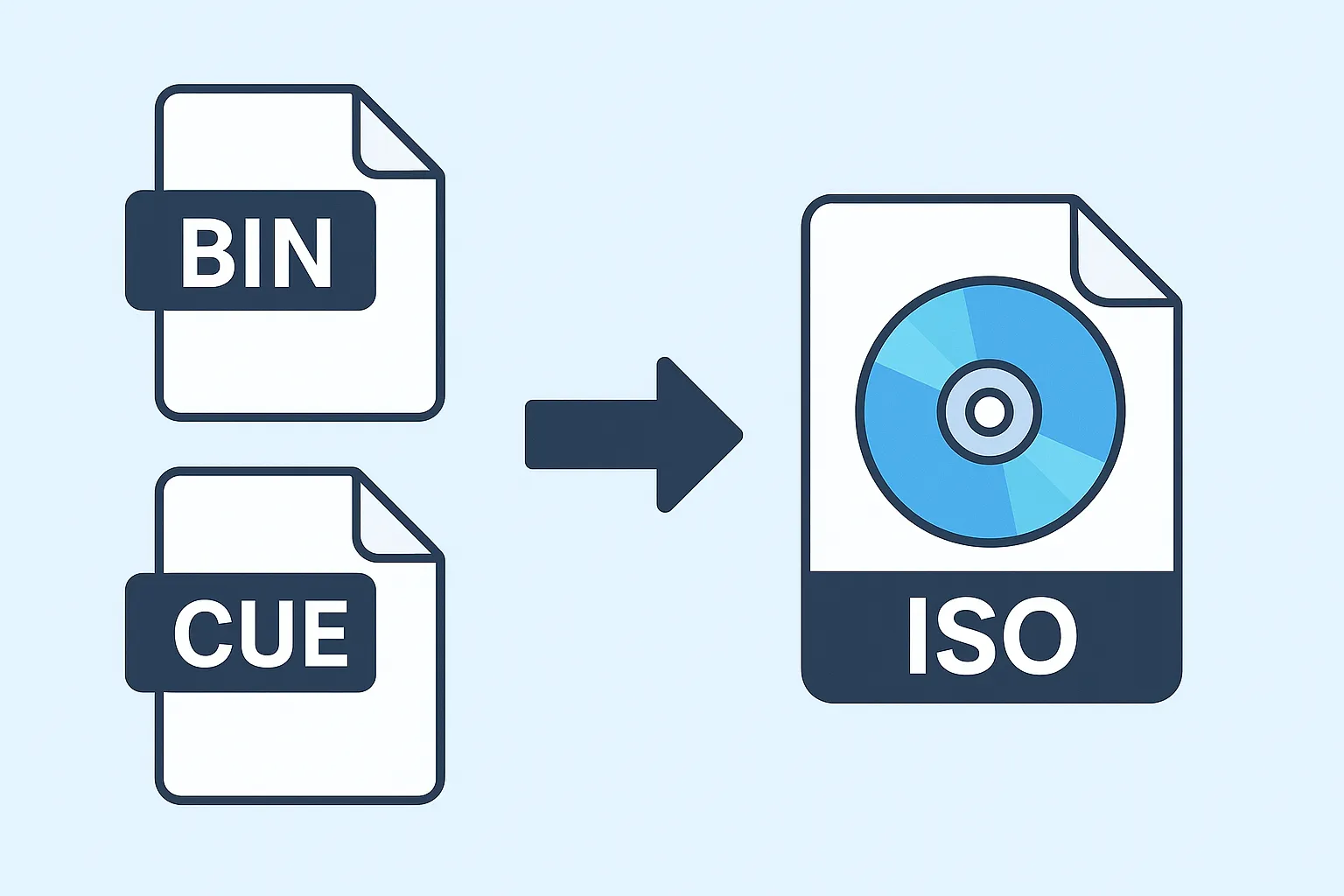
If you download retro games, CD images or older software, you’ll often see files like .bin and .cue instead of a simple .iso. The good news: you can convert BIN & CUE to ISO quickly – even if you’re not technical.
What is a BIN file?
A BIN file is a binary copy of the data stored on a disc (for example a game CD, audio CD, or software installer). It contains the raw data, track by track – but usually without information like track names or where one track ends and the next begins.
What is a CUE file?
A CUE file is a tiny text file that tells software how to interpret the BIN:
- Where each track starts and ends
- Which audio/data mode is used
- Track order and layout
That’s why you often see them together as “BIN & CUE”. For a clean ISO conversion, it’s best if you have both files in the same folder.
What is an ISO file?
An ISO file is a single, standardized disc image format. Almost every operating system, virtual drive and emulator can work with it. That’s why converting a BIN file to ISO is so useful:
- Easier to mount on Windows, Mac and Linux
- More compatible with virtual drives and emulators
- Cleaner backup format – just one file instead of several
Method 1 – Convert BIN to ISO the easy way (online)
The fastest method is to use an online BIN to ISO converter. With OnConvert, you don’t have to install any software or learn command line tools.
Step-by-step: convert BIN & CUE to ISO with OnConvert
- Open the converter: onconvert.io
- Upload your .bin file (and the .cue file if you have it)
- Wait while the tool processes and builds a clean ISO
- Download your new .iso file
game.bin and
game.cue). This helps the converter detect the correct track layout.
This method works for most BIN files used for:
- Old PC game CDs and software discs
- PlayStation / PSX / PS2 dumps (if created correctly)
- Audio or mixed-mode CDs backed up with BIN/CUE
Method 2 – Convert BIN to ISO with desktop software
If you prefer an offline solution, several desktop tools can also convert BIN to ISO:
- PowerISO – popular Windows disc image tool
- ImgBurn – classic burning and image utility
- cdrtools / bchunk – command line tools on Linux and macOS
Typical desktop workflow
- Install your selected application (for example PowerISO)
- Open the BIN file (or the CUE file, if required)
- Select “Convert” or “Save as ISO”
- Choose output folder and start the conversion
Desktop tools can be useful if you convert a lot of files on the same machine. For occasional conversions, the online method is usually more convenient.
What if I only have a BIN file and no CUE?
Some BIN files don’t come with a CUE. In many cases, they can still be converted to ISO, but:
- Track boundaries may not be perfectly accurate
- Mixed-mode discs (data + audio) might not convert 1:1
If your emulator or virtual drive complains, you can:
- Search the web for a matching CUE file (for the exact game / release)
- Create a CUE manually using a template and the correct track info
Common BIN → ISO problems (and quick fixes)
1. “Can’t convert BIN to ISO” or conversion fails
This usually points to a corrupted BIN or a missing / wrong CUE. Try downloading the image again or look for a verified dump from a trusted source.
2. Game or disc won’t mount after conversion
Check these points:
- Did you convert the correct file (not a small patch or text file)?
- Does the ISO size roughly match the original BIN size?
- Is your emulator or virtual drive up to date?
3. Multiple BIN files for one game
Some games come as multiple BINs (for example one per track). In those cases:
- Make sure you have a CUE that lists all tracks
- Use that CUE when converting, instead of individual BINs
FAQ: BIN to ISO conversion
Can I just rename a .bin file to .iso?
No. Renaming only changes the file extension – not the structure of the data. Software that expects a real ISO will still fail to read it correctly.
Is BIN the same as ISO?
No. Both are disc image formats, but ISO is a standardized layout that most tools understand. BIN is a raw binary dump that often needs a CUE file to describe it properly.
Is online conversion safe?
With OnConvert, files are processed automatically and deleted shortly after conversion. If you are working with sensitive data, you can also choose an offline tool – but for games and public disc images, online conversion is usually fine.
Does converting BIN to ISO reduce quality?
No. It’s a lossless rearrangement of the same data into a different container format. If the original BIN is good, the resulting ISO will be too.
Convert your BIN files to ISO now
Converting BIN and CUE files to a clean ISO image makes them easier to store, mount and use – on any modern system. Whether you’re restoring old game backups or dealing with legacy software, the process doesn’t have to be complicated.
Looking for more? Check out our other guides in the Onconvert blog for tutorials on BIN & CUE, ISO mounting, and platform-specific conversion tips.