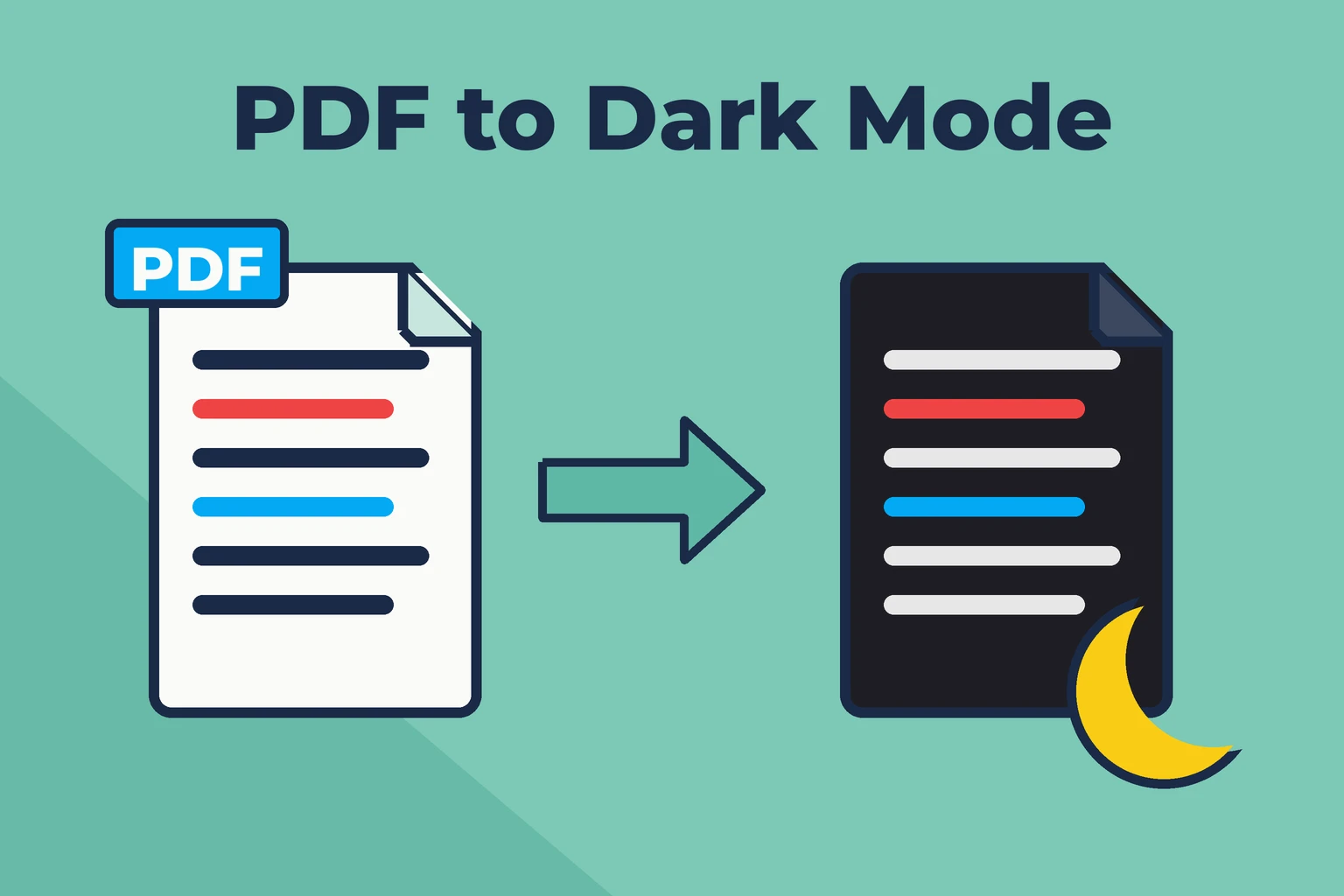
Most PDFs are made for white paper. Reading a 300-page textbook or a long report on a bright screen at night is tiring. Luckily, there are several ways to get a PDF in dark mode – some change only how your reader displays the file, others create a new dark PDF you can open anywhere. Here's how to convert a PDF to dark mode on every device.
Quick answer
To make a PDF dark mode permanently, open the PDF to Dark Mode converter, drop in your file, choose Smart Dark and a theme, and download the result. The dark PDF works in every app – on iPhone, Android, Kindle or your laptop. If you only want to read in dark mode in one app, Adobe Acrobat Reader and Firefox have built-in options (see below).
Dark viewer vs. dark PDF file – what's the difference?
There are two ways to get dark PDFs, and they solve different problems:
- Dark viewer setting – the PDF stays white, but your app shows it with dark colors. Works only in that one app, on that one device. Often turns photos into negatives.
- Dark PDF file – you convert the PDF itself. The dark version opens in any app, syncs to all your devices and can be shared with others.
If you read the same document on your phone, tablet and computer – or your favorite reader app has no dark option – converting the file is the better choice.
Method 1 – Convert the PDF to dark mode (works everywhere)
The OnConvert converter runs in your browser, so the PDF never leaves your device. It works on Windows, Mac, iPhone and Android.
- Open the PDF to Dark Mode converter.
- Drop your PDF into the upload box. A preview of the first pages appears.
- Choose a mode: Smart Dark keeps colored text, photos and illustrations; Full Invert flips every color and is fastest for plain text.
- Pick a theme: dark gray, black (great for OLED screens), sepia, night blue or your own colors.
- Optional: enter a page range like
20-45to convert only some chapters. - Click Convert to dark mode, compare before and after with the slider, and download your dark PDF.
Method 2 – Dark mode in Adobe Acrobat Reader
Acrobat's Dark Gray theme only darkens the menus and toolbars – the page itself stays white. To make the document dark, use the accessibility setting instead:
- Open Acrobat Reader and go to Edit → Preferences (on Mac: Acrobat Reader → Settings).
- Select Accessibility.
- Check Replace Document Colors.
- Choose Use High-Contrast colors and select White text on black, or set custom page and text colors.
- Click OK.
Downsides: the setting applies to every PDF you open, colored text often turns white too, and it only works inside Acrobat on that computer. The PDF file itself stays white.
Method 3 – Read PDFs in dark mode in Firefox
Firefox's built-in PDF viewer can force page colors. In recent versions:
- Type
about:configin the address bar and accept the warning. - Search for
pdfjs.forcePageColorsand set it totrue. - Set
pdfjs.pageColorsBackgroundto a dark color like#1e1e1eandpdfjs.pageColorsForegroundto a light one like#e6e6e6. - Reopen the PDF.
Like Acrobat's setting, this affects every PDF in Firefox and can recolor colored text, but images usually stay intact.
Method 4 – PDF dark mode on iPhone and iPad
iOS dark mode changes the system, not the PDF – Files, Safari and Books still show white pages. The Books app's reading themes only work for EPUB books, not PDFs. You have two options:
Option A: Smart Invert (quick, temporary)
- Open Settings → Accessibility → Display & Text Size.
- Turn on Smart Invert.
This inverts the whole screen. PDF pages turn dark, but photos inside the PDF often look like negatives, and you have to switch it off again for other apps. Tip: add it to the Accessibility Shortcut (triple-click the side button).
Option B: Convert the PDF (permanent)
Open the dark mode converter in Safari, choose your PDF from Files, convert it and tap Save dark PDF. Save it to Files or open it in Books – now it stays dark in every app.
Method 5 – PDF dark mode on Android
Android has a similar system-wide option: Settings → Accessibility → Color inversion (the exact menu names vary by phone maker). It darkens PDF pages but also inverts photos. Some PDF reader apps have their own night or dark reading mode – check the view settings of your app. For a dark PDF that works in every app, convert the file in Chrome with the online converter.
What about Chrome, Edge and Mac Preview?
Chrome's built-in PDF viewer has no option for dark pages, and neither does Preview on Mac – system dark mode only darkens the window around the page. Browser extensions that force dark mode on websites usually don't reach the PDF viewer either. In these apps, converting the PDF itself is the most reliable way to read it in dark mode.
Why a simple invert ruins colors (and how to avoid it)
Most dark mode settings simply invert every color. That's fine for black text on white, but everything else goes wrong:
| Content | Simple invert | Smart Dark |
|---|---|---|
| Black text on white | Light text on black | Light text on your chosen dark color |
| Red, blue, green text | Turns cyan, orange, pink | Stays red, blue, green |
| Photos | Look like film negatives | Stay natural |
| Yellow highlights | Turn dark blue | Stay yellow, text readable |
For textbooks, worksheets with colored answers or anything with photos, use a converter that only flips white, black and gray – like Smart Dark.
Tips for the best result
- Dark gray beats pure black for long reading sessions – less contrast, less eye strain. Pure black saves battery on OLED screens.
- Sepia is a good middle ground if dark mode feels too harsh.
- Don't print dark PDFs – they use a lot of ink. Keep the original for printing, or convert it to black and white.
- Big books: convert only the chapters you're reading with a page range – it's faster on phones.
FAQ: PDF dark mode
Can you convert a PDF to dark mode?
Yes. A PDF dark mode converter changes the colors inside the file, so the dark version opens in any app. With the free OnConvert converter, colored text and images keep their look.
How do I make a PDF dark mode in Adobe Acrobat?
Go to Edit → Preferences → Accessibility, check Replace Document Colors, choose Use High-Contrast colors and select White text on black. The Dark Gray theme only darkens the menus, not the page.
How do I read a PDF in dark mode on iPhone?
Turn on Smart Invert in Settings → Accessibility → Display & Text Size for a quick fix, or convert the PDF to dark mode so it stays dark in every app.
Does dark mode change the PDF file?
Viewer settings like Acrobat's high-contrast colors or Smart Invert don't change the file. A dark mode converter creates a new PDF with dark pages and leaves your original untouched.
Will images look inverted in dark mode?
With simple invert settings, yes – photos look like negatives. A smart converter keeps photos and illustrations in their original colors.
Can I turn a dark PDF back to white?
Yes. Keep the original file, or use the PDF to Black and White converter, which turns dark mode PDFs back into white pages for printing.
Convert your PDF to dark mode now
Viewer settings are fine for a quick read in one app. If you want a PDF that's dark everywhere – and keeps its colors, photos and searchable text – convert the file itself with the free PDF to Dark Mode converter. Need the pictures from a PDF instead? Here's how to extract images from a PDF.